Choose the area to keep
Draw a crop rectangle directly on the image and apply it when the composition feels right. Trim empty space when the useful artwork is surrounded by unused canvas.

Get the artwork into the shape you need.
Trim spare canvas, isolate a detail, flip a composition or turn an image. Make a clean working copy for the next design step.
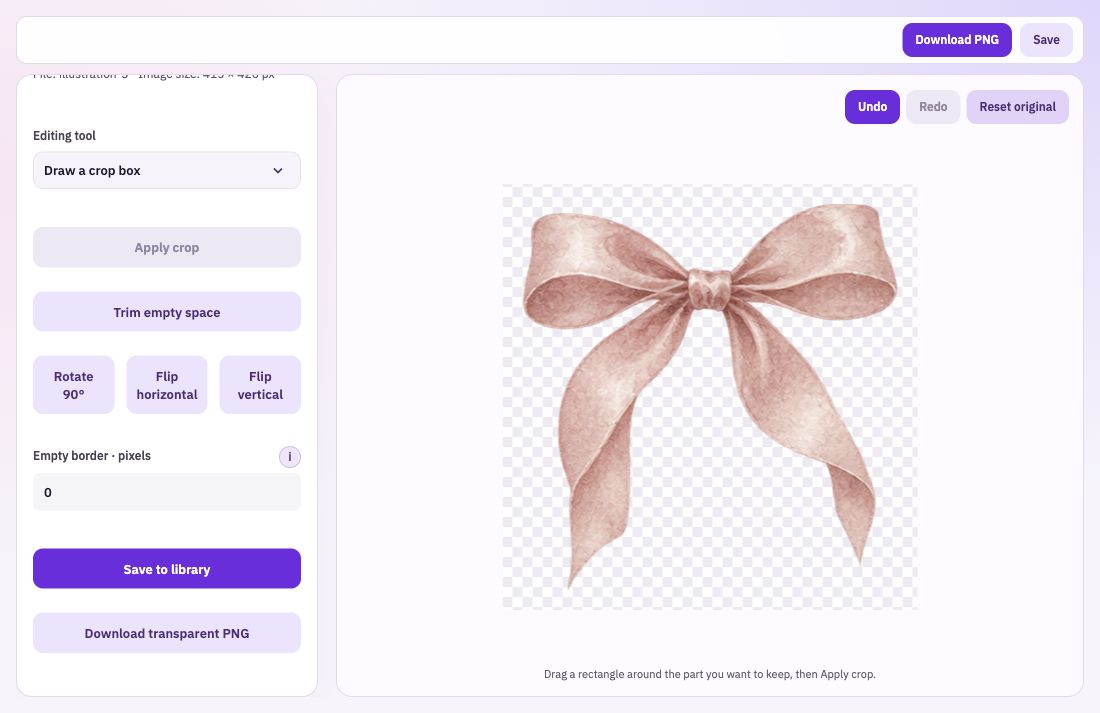
Draw a crop rectangle directly on the image and apply it when the composition feels right. Trim empty space when the useful artwork is surrounded by unused canvas.
Flip horizontally or vertically, or rotate the artwork in quarter turns. Compare where the visual weight falls after each change.
Use Undo, Redo or Reset original while comparing edits. Download a PNG or save the prepared version to your Library for another tool.
Start with the original you want to edit. Decide whether the problem is spare canvas, an unwanted area or the direction of the composition.
Draw and apply the crop, trim empty space, rotate or flip. Check the complete edge of the remaining artwork before exporting.
Download the PNG or save it to your Library. If it will be printed, check its new pixel dimensions against the intended physical size.
Cropping removes part of the source canvas. It does not add detail to what remains. Keep that in mind when isolating a small detail for a large product, and compare the cropped file with your intended print dimensions.
Bring: Your image.
Download: PNG.
Import your original image. Crop, trim, flip or rotate. Download the edited PNG.