Check a real physical size
Enter the width and height in inches or millimetres and choose the target resolution. The checker compares that requirement with the pixels in the source image.
Know how big your artwork can print.
Before preparing a print, compare the image you have with the size you need. See the relationship between pixels, physical print dimensions and print resolution without working it out on a scrap of paper.
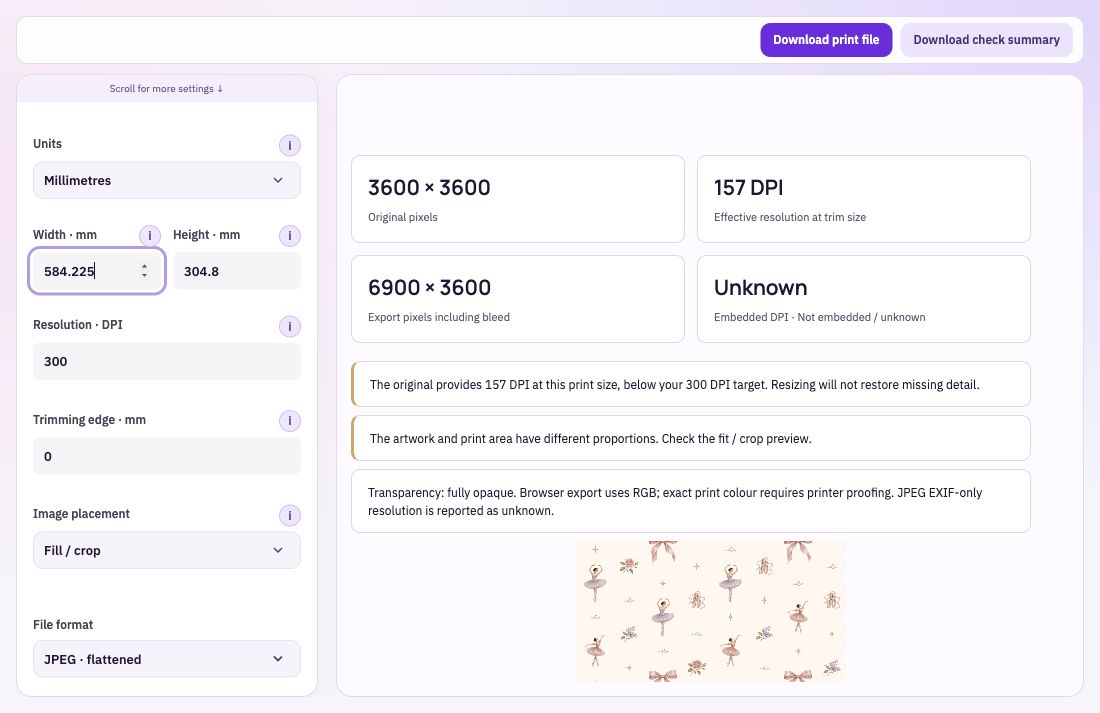
Enter the width and height in inches or millimetres and choose the target resolution. The checker compares that requirement with the pixels in the source image.
When the image and print area have different proportions, decide whether to fit the whole artwork or crop it to fill. The preview helps you see what remains inside the chosen area.
Save a named print size for later jobs. Prepare a PNG or JPEG image and download a PDF summary to keep the dimensions and check result with the project.
Import the actual artwork file, rather than a screenshot or social-media copy. Read its source pixel dimensions in the checker.
Set the physical size and resolution, and any trimming-edge requirement. Review the fit and the available image detail together.
Download the print image and, when useful, the PDF size summary. Compare the file with your printer’s complete instructions before sending it.
Enlarging an image or changing its resolution label can make a bigger file without making the original lines sharper. Use the checker to choose a suitable output size, and check bleed, colour and product-specific requirements in the printer’s own specification.
Bring: An image and your intended print size.
Download: Print image and PDF size summary.
Import the image. Enter the required physical dimensions and resolution. Review the result and download the file or summary.