Choose the colour complexity
Set a target number of colours from two to sixteen. Fewer colours simplify a flat design; more colours can retain extra shading and create more individual shapes.
Take a flat drawing into editable SVG shapes.
Turn clear illustrations and line drawings into vector paths. Compare the trace with the original, tune the detail and open the SVG in your vector drawing app for the next stage.
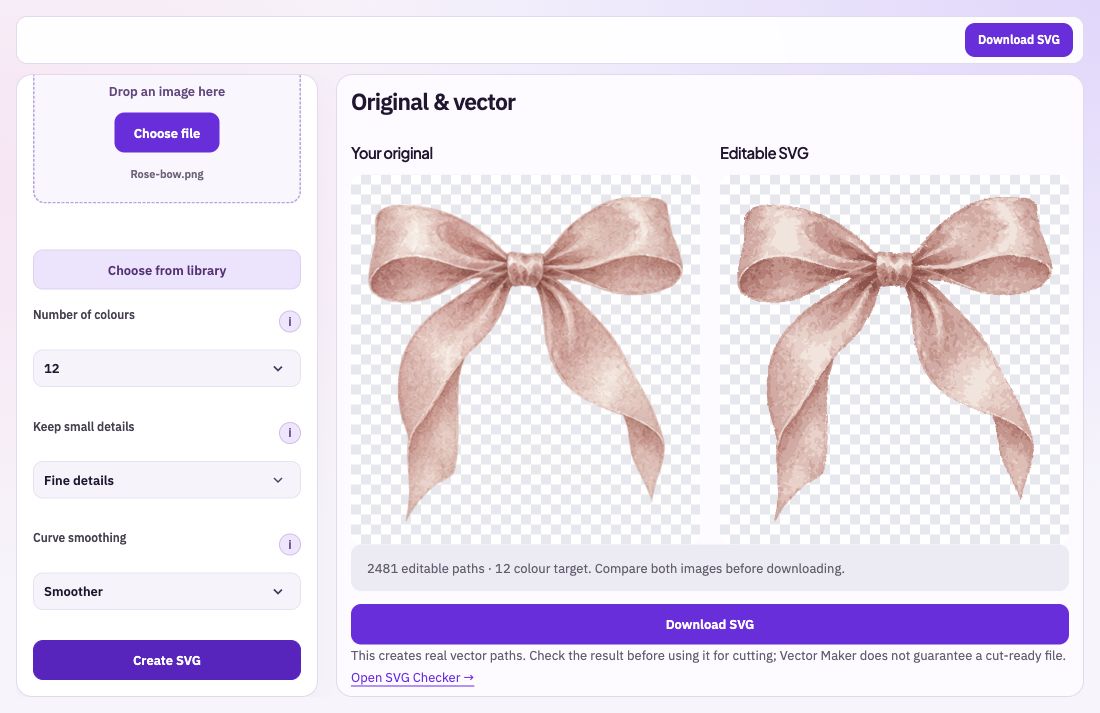
Set a target number of colours from two to sixteen. Fewer colours simplify a flat design; more colours can retain extra shading and create more individual shapes.
Compare fine details, balanced detail or simpler shapes. Adjust curve smoothing to follow sharper edges or use smoother outlines.
View the original and the traced result together. Download an SVG containing editable paths, then open it in the vector app you use for final refinement.
Import a PNG, JPEG or WebP image with clear edges. A small blurry image gives the trace less information to work with.
Choose colours, detail and smoothing, then create the SVG. If the result feels cluttered, try simpler shapes or fewer colours and compare again.
Download the SVG and inspect its paths in your drawing app. Use SVG Checker & Cleaner to understand the file before its next software step.
A detailed painting becomes an approximation made from coloured shapes. That may be useful for a graphic treatment, but it is a different result from the painted original. For cutting workflows, inspect tiny pieces and path behaviour in the destination software before using the file.
Bring: PNG, JPEG or WebP image.
Download: SVG containing editable paths.
Import a clear flat illustration. Adjust detail and smoothing while comparing. Download the SVG and inspect it in your vector app.