Choose a finish that suits the drawing
Compare ten procedural finishes, then adjust their scale and strength. Shuffle the grain to try another arrangement of the marks without losing your chosen settings.

Give digital artwork a little texture.
Change the surface character of an illustration with canvas, paper and other finishes. Keep it subtle or make the texture part of the style, and compare it with the original as you go.
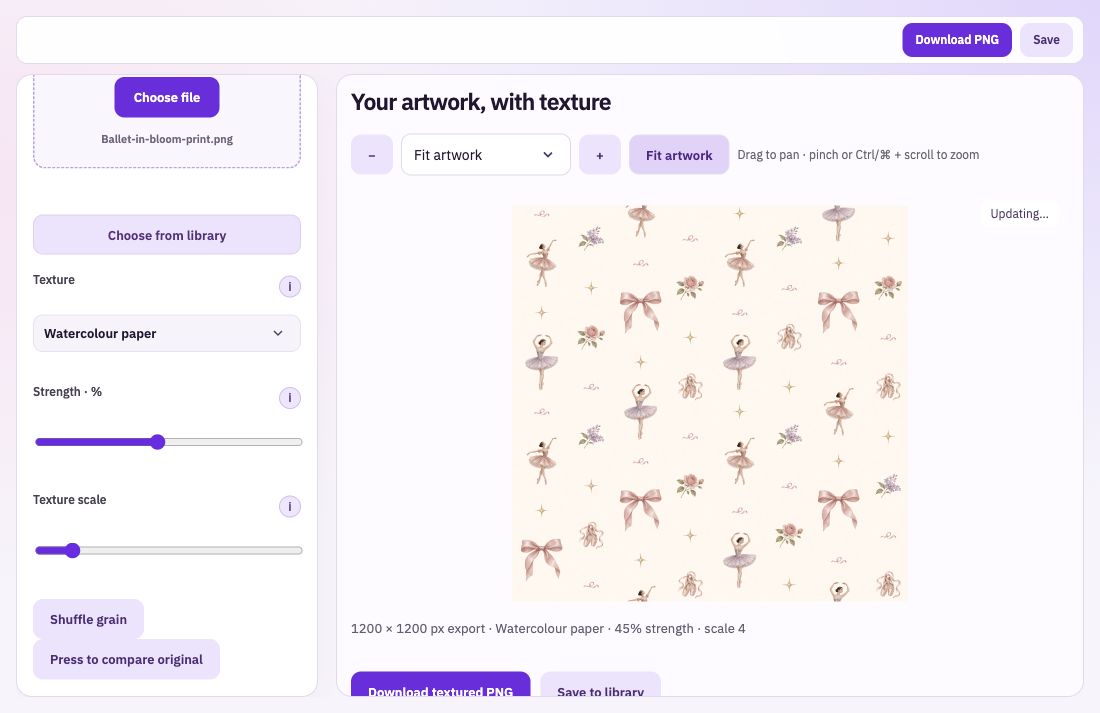
Compare ten procedural finishes, then adjust their scale and strength. Shuffle the grain to try another arrangement of the marks without losing your chosen settings.
Zoom into the artwork at actual size and pan around the preview. Texture scale follows the source pixels, so you can judge fine fibres, highlights and grooves rather than relying on a small thumbnail.
For the relevant finish, choose a thread direction or let it follow the artwork contours. Keep plain backgrounds smooth when the effect belongs mainly on the illustration.
Choose a PNG, JPEG or WebP image, or an image in your Library. Start with the strongest source you have.
Compare the available finishes, set scale and strength, and use the original comparison while inspecting the detail.
Download a textured PNG or save it to your Library. You can also download a greyscale grain PNG to use as a texture source in a compatible painting workflow.
A texture applied across one pattern can alter the way its edges meet. If the image will be repeated, inspect the textured export in Repeat Inspector before using it across a larger area. Keep the clean original so you can return to it when developing another finish.
Bring: Your artwork.
Download: Textured PNG.
Import your artwork. Choose a texture and adjust its strength. Compare with the original and download.